How to import a book into BookWiz (and get a clean chapter split)
How to import a book into BookWiz (and get a clean chapter split)
You wrote your book in Word, Google Docs, or Scrivener. Now you want it in BookWiz so the AI can improve it and you can export a KDP-ready file. Here is the honest, step-by-step way to do that — and the small things you can do to your source file first so the chapter split comes out clean.
 \n\n## Step 1 — Open the import screen
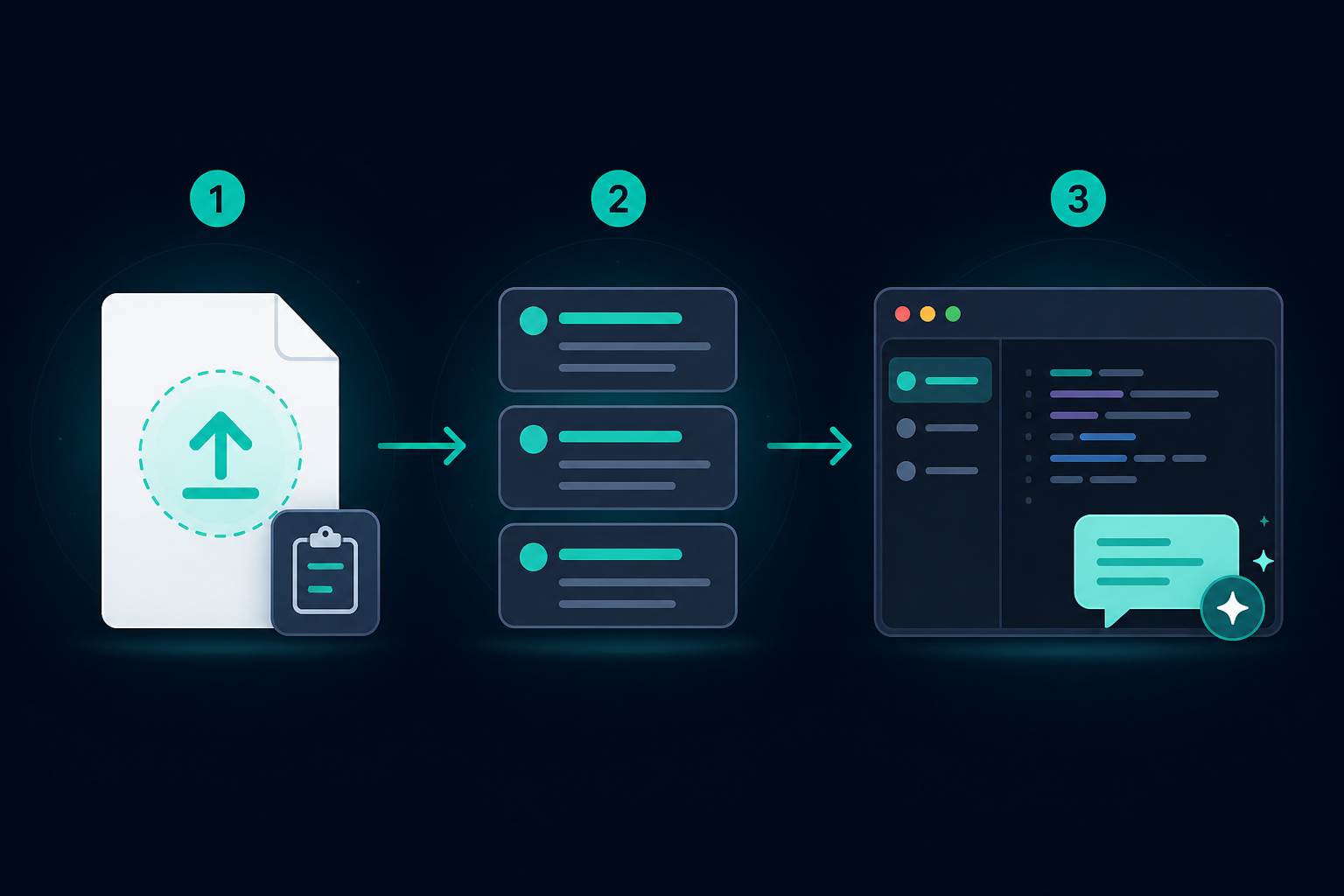
From My Books, click Import (next to New Book). Or go straight to /dashboard/books/import.
You have two ways in:
- Upload a file — drag and drop a
.docx,.txt, or.mdfile, or click to browse. Up to 10 MB. - Paste text — for when your draft lives in Google Docs or a Notion page and you just want to copy it in.
Step 2 — Add your draft
If you upload a file, BookWiz reads it immediately and moves you to the review step. If you paste, hit Read my draft once you've pasted the text.
Either way, nothing is created yet. The next screen is a preview you can edit.
Step 3 — Review the chapters
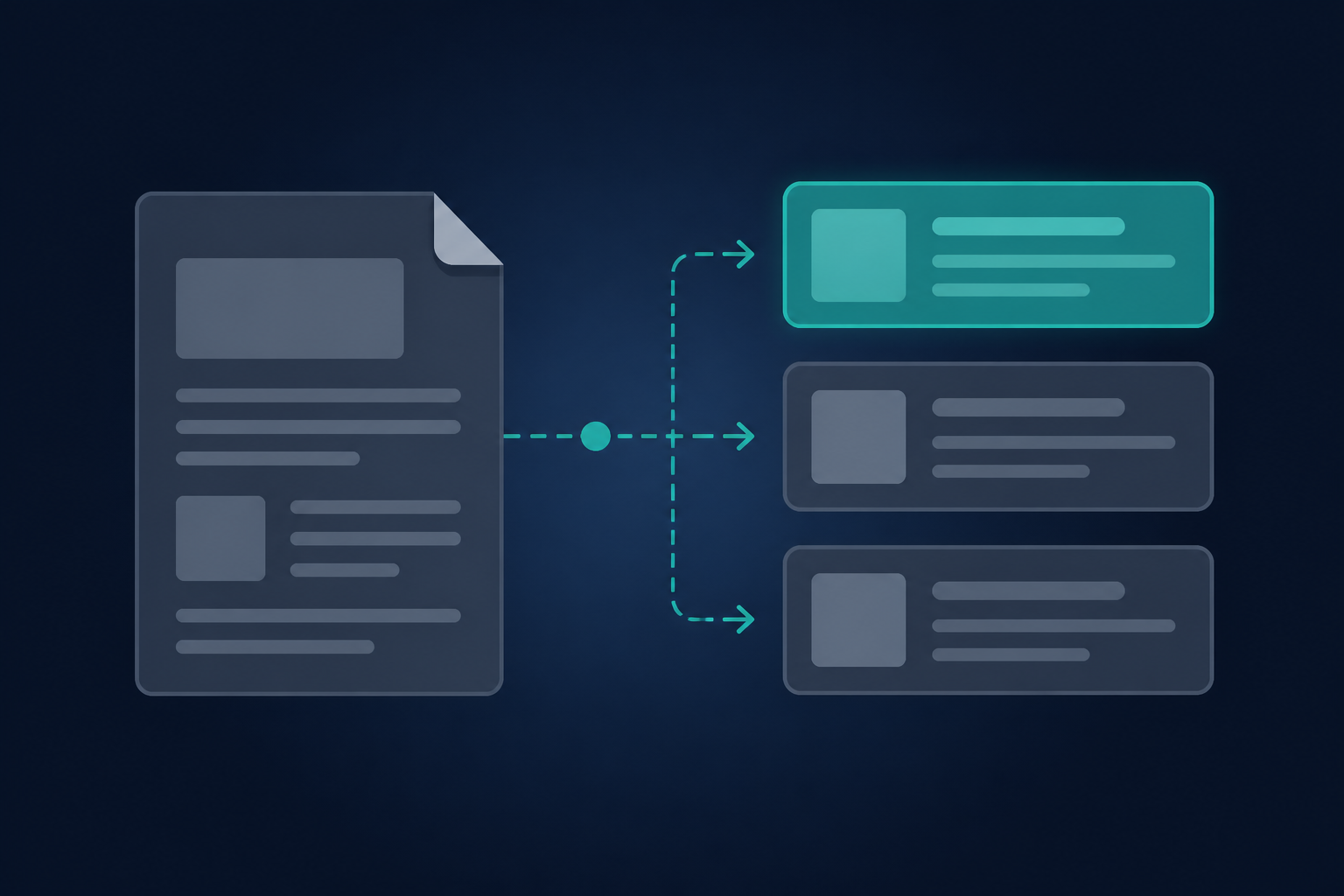
This is the screen that decides whether your import is clean. BookWiz splits your manuscript into chapters using whatever structure it can find:
- In a
.docx, it uses Word's Heading 1 and Heading 2 styles. - In text or markdown, it uses
#headings, lines underlined with===, or bareChapter Nlines.
You get a list of chapters with their word counts. For each one you can:
- Edit the title — click the title field and type.
- Remove a chapter — click the × on the right (the content is dropped from the import).
- Expand to check the text — click the chevron to read the body and make sure it landed in the right chapter.
If you remove every chapter, you'll see an empty-state message — go back and re-add your draft.
When the list looks right, click Continue to details.
Step 4 — Book details
Pick a title (pre-filled from your first heading), your pen name (pre-filled from your account), and whether it's fiction or non-fiction. Click Import & start writing.
You land in the Writing Room with every chapter already in the sidebar, and the AI has already read the whole book. You can start asking it to tighten, rewrite, or check consistency straight away.
Tips for a clean split
The split is only as good as the structure in your source file. Here is how to set it up before you import so you get the chapters you expect.
Use real headings, not bold text
In Word, use the Heading 1 style for chapter titles — not bold, not a bigger font. BookWiz reads the style, not the look. The same in Google Docs: use the heading styles, then export as .docx.
In markdown or plain text, start each chapter with a # line:
# Chapter 1: The Beginning

It was a dark and stormy night...
One heading level for chapters
If your book uses # for chapters and ## for scenes, BookWiz splits on # and keeps the ## scenes inside the chapter — which is what you want. If you used ## for everything, it splits on ## instead. You don't need to do anything; it picks the shallowest level that actually structures the document.
"Chapter N" lines need a blank line before them
If your plain-text draft uses bare Chapter 1, Chapter 2 lines as markers, put a blank line before each one. BookWiz ignores Chapter 11 sitting in the middle of a paragraph (it can't tell that from a real heading), but a blank line before Chapter N is the signal it looks for.
No headings? It becomes one chapter
If your draft is a wall of text with no headings at all, it imports as a single chapter. That is fine — you can split it in the editor later, or ask the AI to "split this chapter into three by scene."
Check the word counts
The review screen shows a word count per chapter. If chapter two shows 40,000 words and chapter three shows 80, you've probably got a heading in the wrong place. Fix it in the source and re-import — it's free and instant.
What to do after importing
Once you're in the Writing Room with your imported book:
- Fill the Notes tab with your tone, characters, and any "do not change" rules. The AI reads Notes alongside your chapters, so this steers every rewrite without you re-pasting context.
- Ask for a consistency pass. "Check whether the timeline in chapter 7 matches chapter 2" — the AI has read the whole book, so it can actually answer.
- Rewrite in your voice. Highlight a clumsy paragraph and ask for a smoother version that still sounds like you.
- Export when you're done. Hit the export wizard for a KDP-ready EPUB, print PDF, and paperback cover.
Frequently asked questions
Does it keep my formatting? Bold, italics, lists, tables, links, and blockquotes are preserved as markdown. Fonts and page layout are not — BookWiz is a writing tool, not a layout tool, and the export wizard handles KDP formatting at the end.
Can I import a PDF? Not directly. PDFs are a print format, not a writing format — the text inside is often scrambled. Open the PDF in Word (or copy the text out), save as .docx, and import that.
What if my Word doc has no heading styles? It imports as one chapter and you'll get a note saying so. Either apply heading styles in Word and re-import, or split it in the editor.
Is my draft locked in? No. Export your full manuscript as DOCX, EPUB, or PDF at any time, on any plan. Your book is never held hostage.
Does an import count against my book limit? Yes — one import is one book, the same as creating a new book from scratch. Free plan includes 3 books; paid plans are unlimited.
Ready to write yours?
Bookwiz is a writing room with an AI assistant that keeps your whole manuscript in context — it drafts your outline, writes from your notes, and stays consistent with every chapter.
New here? See how the AI book writer works — or, if you're writing fiction, the AI novel writer.
Start your book freeNo credit card required · See pricing